Dependent Dropdown Lists
Swipe to show menu
A dependent dropdown is a list that changes based on what was selected in another cell. The classic example in our table: when a user picks Tech in the Category column, the Product dropdown should show only Laptop and Phone — not Chair or Desk. Change the category to Office, and the product list switches accordingly.
This is called cascading validation — one selection drives the next.
The Logic Behind It
The trick is combining two things you already know:
- Named ranges — one per category, each pointing to the relevant product list;
INDIRECT— to dynamically select which named range to use based on the category cell.
If your named ranges are called Tech and Office, and the category is selected in cell D2, then this formula in the Product validation field:
=INDIRECT(D2).
Setting It Up Step by Step
Step 1 — Prepare your lists on the Lists sheet:
- E1:
Laptop - E2:
Phone - F1:
Chair - F2:
Desk

Since the named ranges are used, you don't necessarily need to have headings, but you can keep them for your convenience. In this example, the headings won't be used within these small cell ranges.
Step 2 — Create a named range for each category:
- Select
E1:E2→ in the Name Bar typeTech; - Select
F1:F2→ in the Name Bar typeOffice.
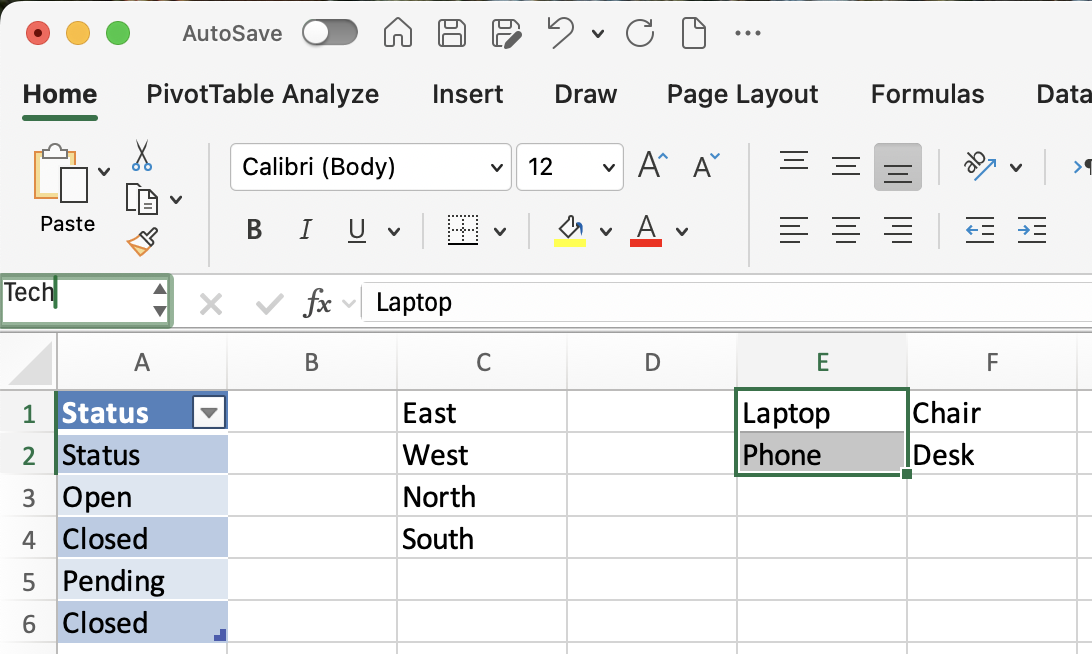
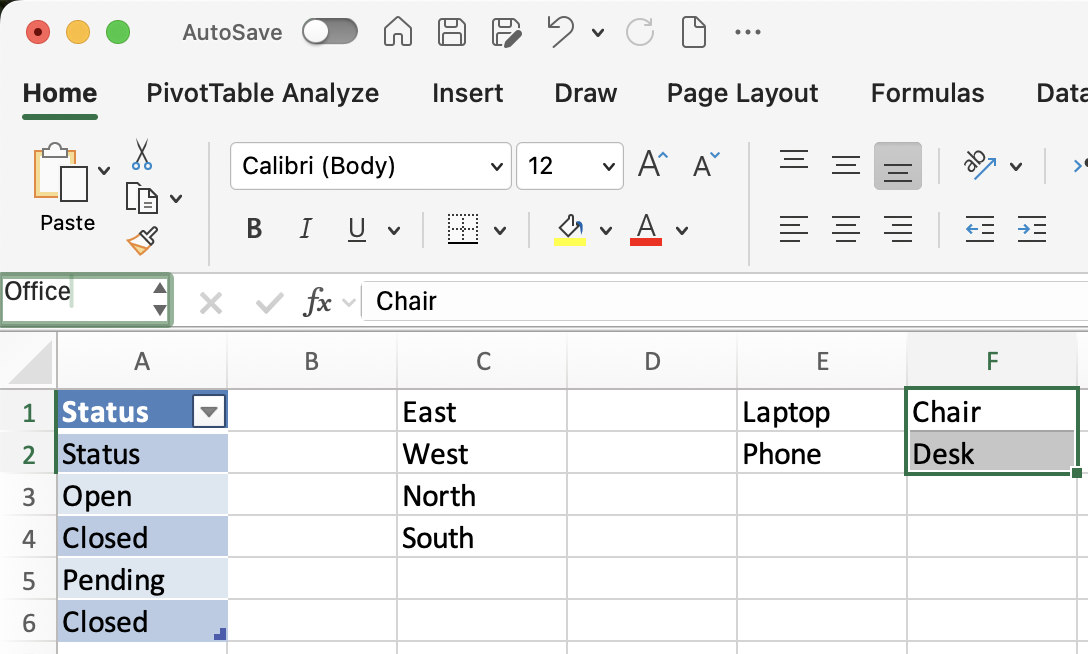
The named range must match the category value exactly, including capitalization. If the category cell says Tech, the named range must be Tech — not tech or TECH.
Step 3 — Apply validation to the Product column:
- Select the Product column cells (
E2:E51); - Open Data Validation → Settings → List;
- In Source, type:
=INDIRECT(D2)— where D2 is the first Category cell; - Click OK
One Known Limitation
If the Category cell is blank, INDIRECT has nothing to resolve and Excel will throw a validation error when the user clicks the Product dropdown. You can suppress this by checking Ignore blank on the Product validation rule — covered in Section 1, Chapter 5.
Task
- Test by selecting
Techin Category — confirm onlyLaptopandPhoneappear in Product column; - Change Category to
Office— confirm the Product list switches toChairandDeskor check any cell in the Product column next toOfficevalue in the Category column (e.g.E4cell); - Go to the
Listssheet and addTabletbelowPhonein column E; - Open Formulas → Name Manager, find the
Technamed range, and expand it to include the new row (E1:E3); - Check the Product dropdown again — confirm
Tabletnow appears.
Thanks for your feedback!
Ask AI

Ask AI

Ask anything or try one of the suggested questions to begin our chat
